 Retech Lasers
PlotNest · nesting software · free 30-day trial
PlotNest nesting software
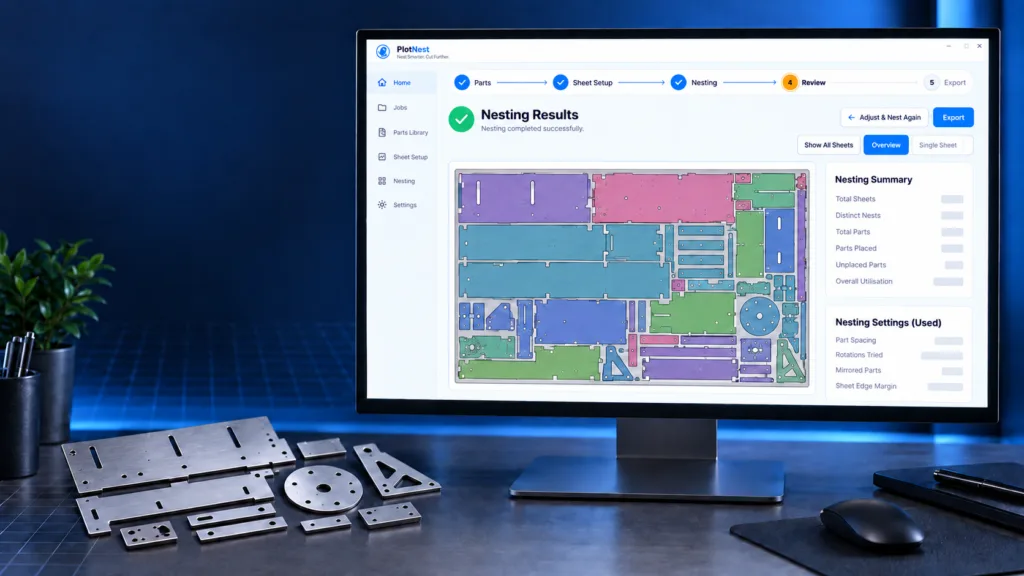
PlotNest arranges your DXF and SVG parts on stock sheets so you cut more parts from less material. Build a parts library, set up your sheets, run the nest and check the utilisation of every sheet before you export the cutting layout.
PlotNest 1.0 for Windows · setup file (.exe), 34 MB · See how it works
Features
Everything you need to nest a batch of parts
Parts library
Keep your DXF and SVG parts in one library. Check each part’s size and set how many you need before you nest.
Saved sheet sizes
Save the sheets you stock, such as a 3000 × 1500 mm stainless steel sheet, then set material, thickness, edge margin and part spacing for the job.
Automatic nesting
PlotNest tries 0°, 90°, 180° and 270° rotations and packs parts tightly. Identical sheets are grouped, so a layout that repeats five times shows once as ×5.
Utilisation on every sheet
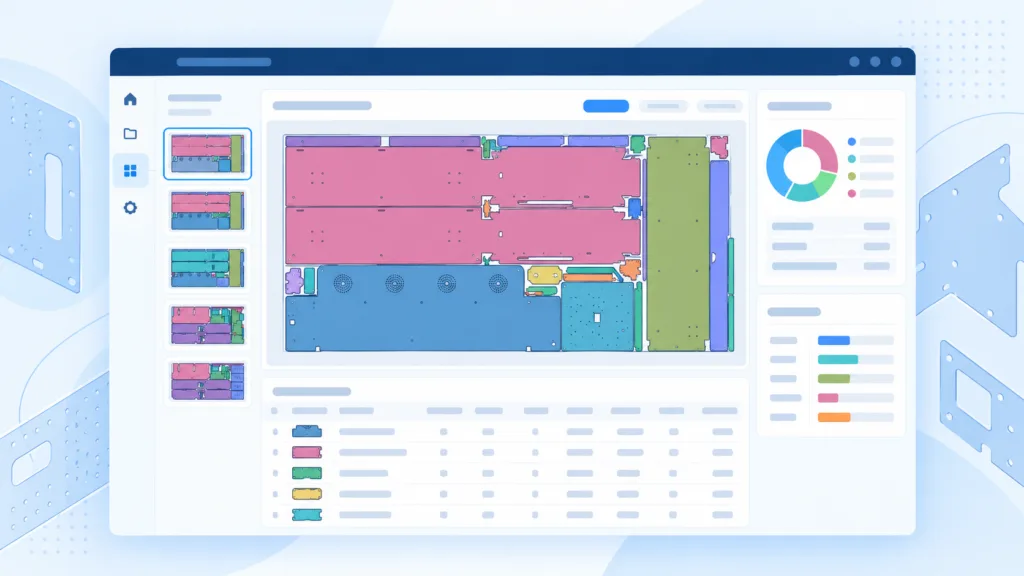
Each layout shows its utilisation, parts placed and uncovered area, so you can see at a glance which sheets are well used.
Cut length, time and weight
The summary adds up total cut length and estimated cutting time at your cutting speed, plus stock, part and charged weight for costing.
DXF export and PDF report
Export the finished layouts as DXF for cutting and save a PDF nesting report for the job file.
Watch
See PlotNest in action
A short video from Retech Lasers on how PlotNest nests parts for sheet cutting to save material.
How it works
Five steps from parts to cutting layout
Step 1
Parts
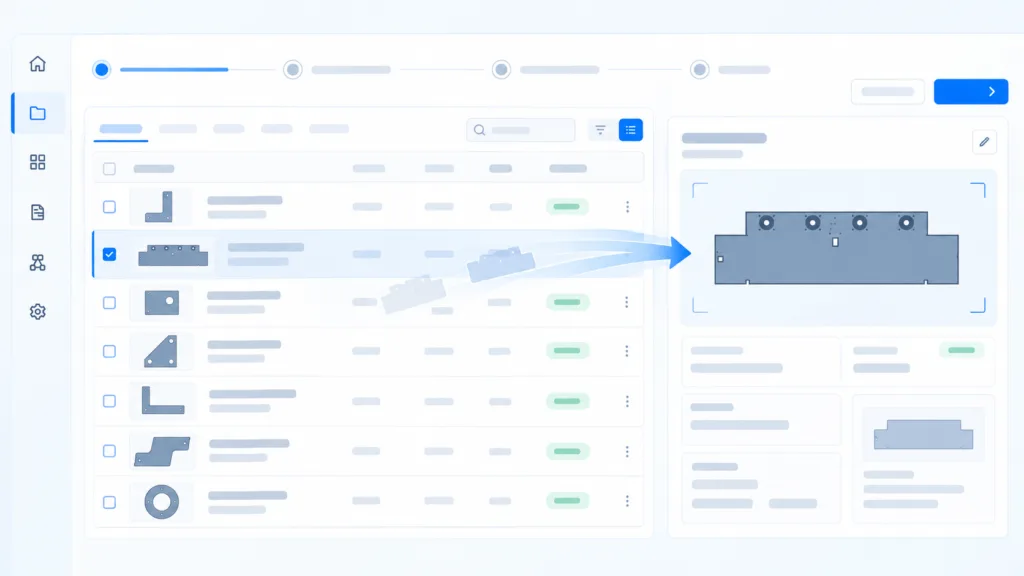
Import DXF or SVG parts into the library and set the quantity of each.
Step 2
Sheet setup
Pick a saved sheet size, then set material, thickness, margins and part spacing.
Step 3
Nesting
Run the nest. PlotNest places every part it can and tells you if any are left over.
Step 4
Review
Check each layout’s utilisation, cut length and time. Not happy? Adjust and nest again.
Step 5
Export
Export DXF files for cutting and a PDF report of the whole job.
Free trial
Try it for 30 days
Download PlotNest for Windows and use it free for 30 days, then buy a licence. PlotNest is sold separately from Plotbot machines. Download the trial →
Nesting summary
Know the numbers before you cut
| Sheets and layouts | How many sheets the job needs and how many distinct layouts |
|---|---|
| Parts placed | Parts placed and any left unplaced |
| Overall utilisation | Share of the stock area covered by parts |
| Uncovered area | Material left over across all sheets |
| Total cut length | Cutting path for the whole job, in mm |
| Estimated time | Cutting time at the speed you set |
| Weights | Stock, part and charged weight for costing |
| Settings used | Part spacing, rotations tried, mirrored parts and sheet edge margin |
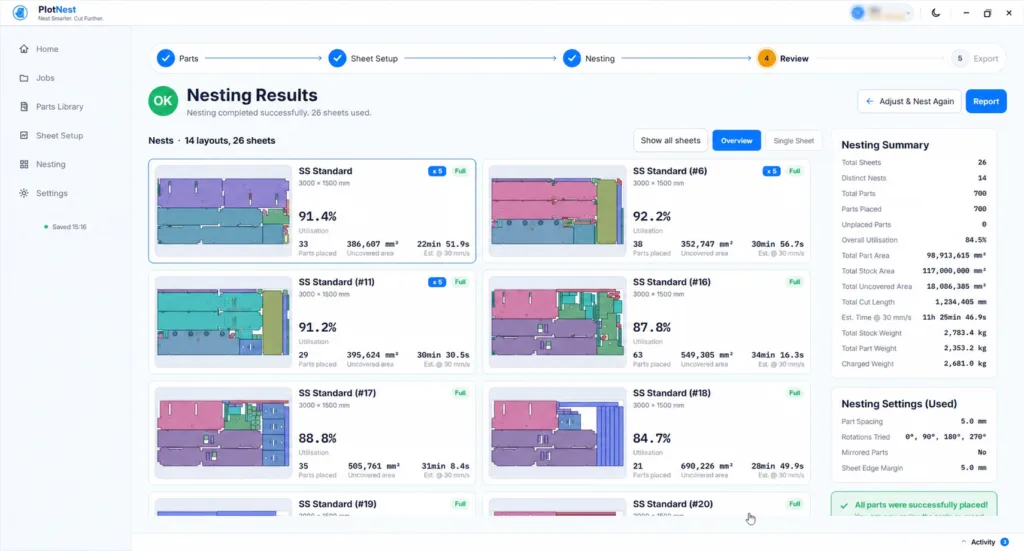
From a PlotNest demo job: 700 stainless steel parts nested on 26 sheets of 3000 × 1500 mm at 84.5% overall utilisation, with every part placed.
Is PlotNest included with Plotbot machines?
No. PlotNest is sold as a separate licence. Every Plotbot CO2 machine comes with Plotbot software for design and cutting; PlotNest is an add-on for workshops that nest batches of parts on sheet stock. You can try it free for 30 days before you buy a licence.
Which files can PlotNest import and export?
PlotNest imports parts as DXF or SVG files. Nested layouts export as DXF for cutting, and the nesting report exports as a PDF.
Does PlotNest run on Windows or macOS?
PlotNest is built as a cross-platform application. The free 30-day trial is currently available for Windows.
Does PlotNest control the laser?
No. PlotNest prepares the cutting layout. Export the nest as DXF and cut it with your machine’s own software, for example Plotbot software on a Plotbot CO2 laser.
What does the nesting summary show?
Total sheets and distinct layouts, parts placed and unplaced, overall utilisation, total and uncovered area, total cut length, estimated cutting time at your cutting speed, and stock, part and charged weight.
Can I try PlotNest before buying?
Yes. Download the Windows setup file on this page and use PlotNest free for 30 days. For a walk-through, request a demo through our contact form or call sales on +91 74488 00114.
Want to see PlotNest at work?
Download the free 30-day trial for Windows, or request a demo and we will quote a PlotNest licence for your workshop. Call sales on +91 74488 00114.
Book a demo · get a quote · ask for service
Talk to Retech
Tell us what you need. Name and phone number are enough; the right person from our team will get back to you.